YouTube video notes for:
Is SketchUp AI Render Good Enough for Client Work?
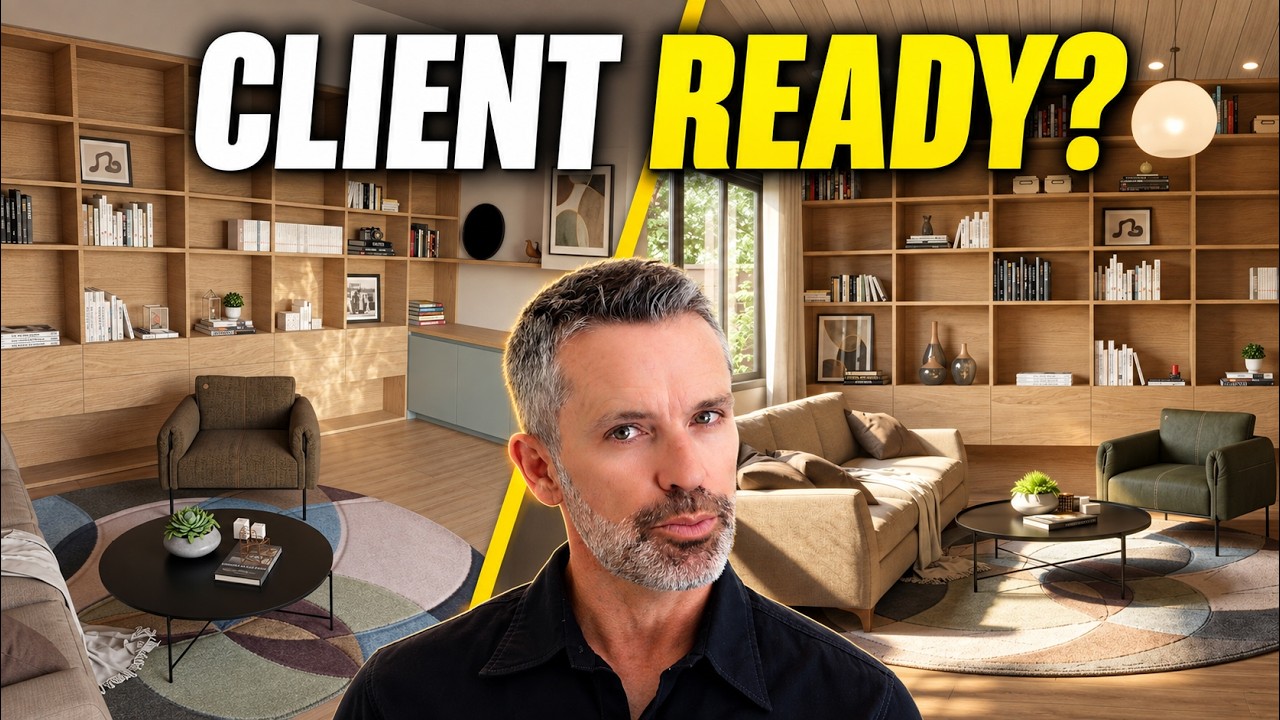
A practical test of SketchUp AI Render on a real project — where it's genuinely useful, where it falls short, and how to decide when it's enough.
Download these notes as a PDFWhether SketchUp AI Render is useful for client work depends on what those images need to do — and whether AI can reliably deliver it.
This test used one garden-studio model and looked at four things that matter in a real project: what AI Render preserves from the model, how it handles a normal client change, what happens when something goes wrong, and whether you can get more than one useful view from the same project.
#1 Separate the jobs an image can do
Before deciding whether AI Render is enough, be clear about what the image needs to do.
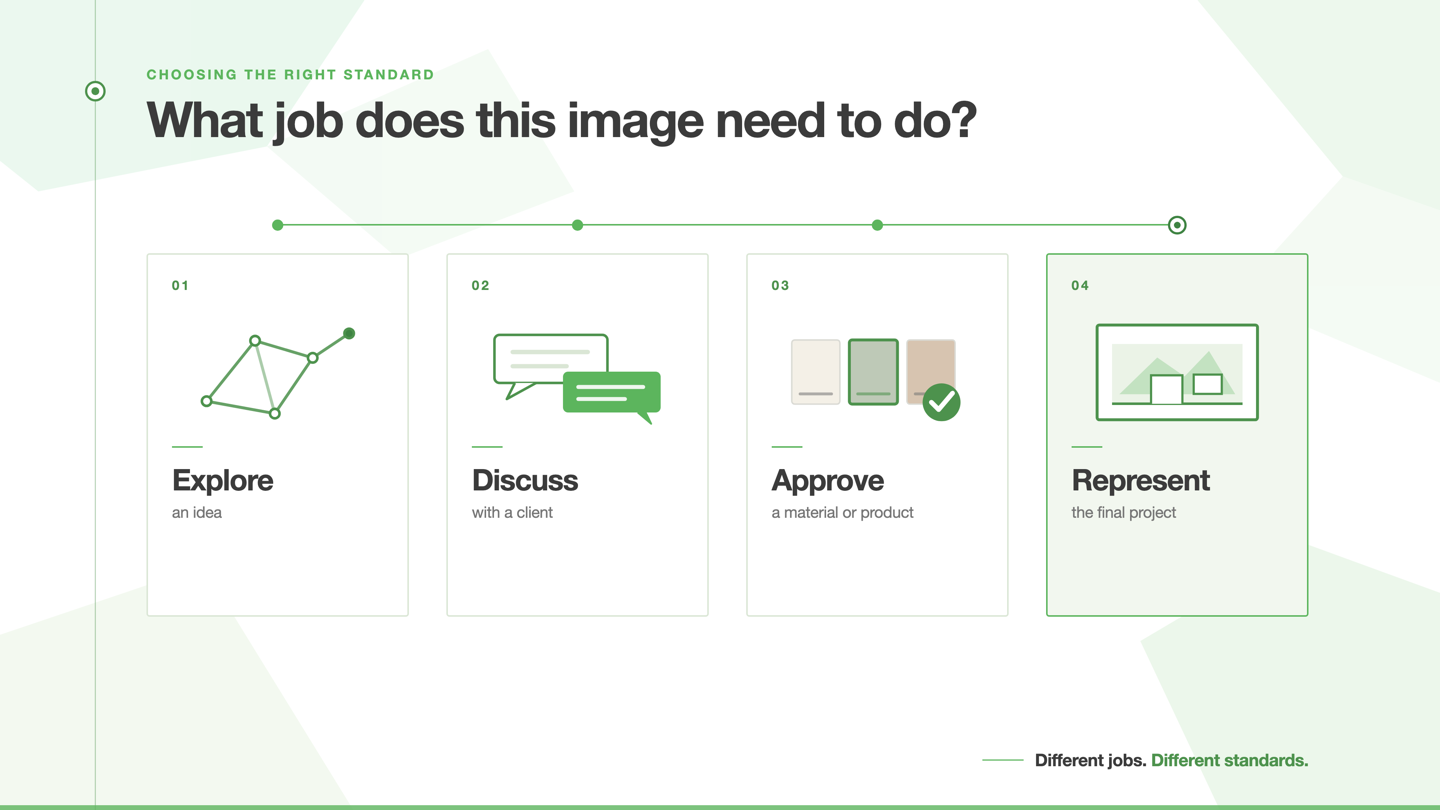
An image can:
- Explore an idea while design decisions are still open.
- Start an early client conversation about the direction.
- Help a client approve a specific material or product.
- Represent the finished project as the final image.
Those all have very different standards. Knowing which one you need is the first step in deciding whether AI Render is enough.
#2 What AI Render sees in your model
Starting with the Auto setting and no extra prompt, AI Render understood a lot. The camera stayed in the right place. The shelving, window, cabinetry, pendant lights, and furniture arrangement all remained recognizable.
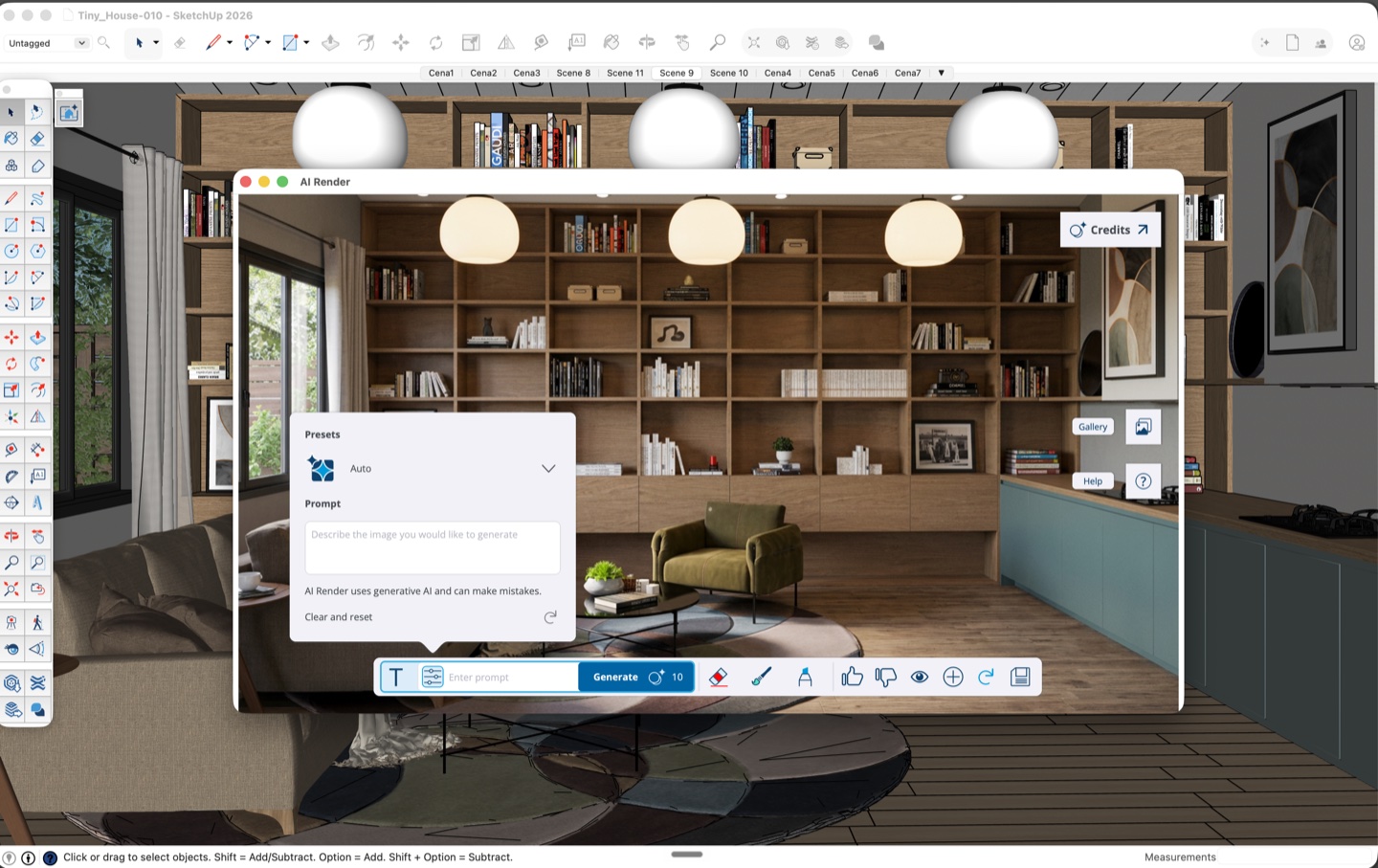
That is already useful. If you have the important architectural decisions in SketchUp, AI can fill in things that are still open: atmosphere, smaller furnishings, textures, planting, and background detail.
It is important to note that every run is different. Generating the same image multiple times, something shifts each time — the chair material, the floor and sofa details, other objects coming and going.
Adding the Interior preset with a short prompt to guide the things not specified in the model — daylight, mood, warmth, and color tones — gave more directed results. Two of those three results were useful starting points for an early concept image. But one of them changed the modeled timber countertop to light stone.
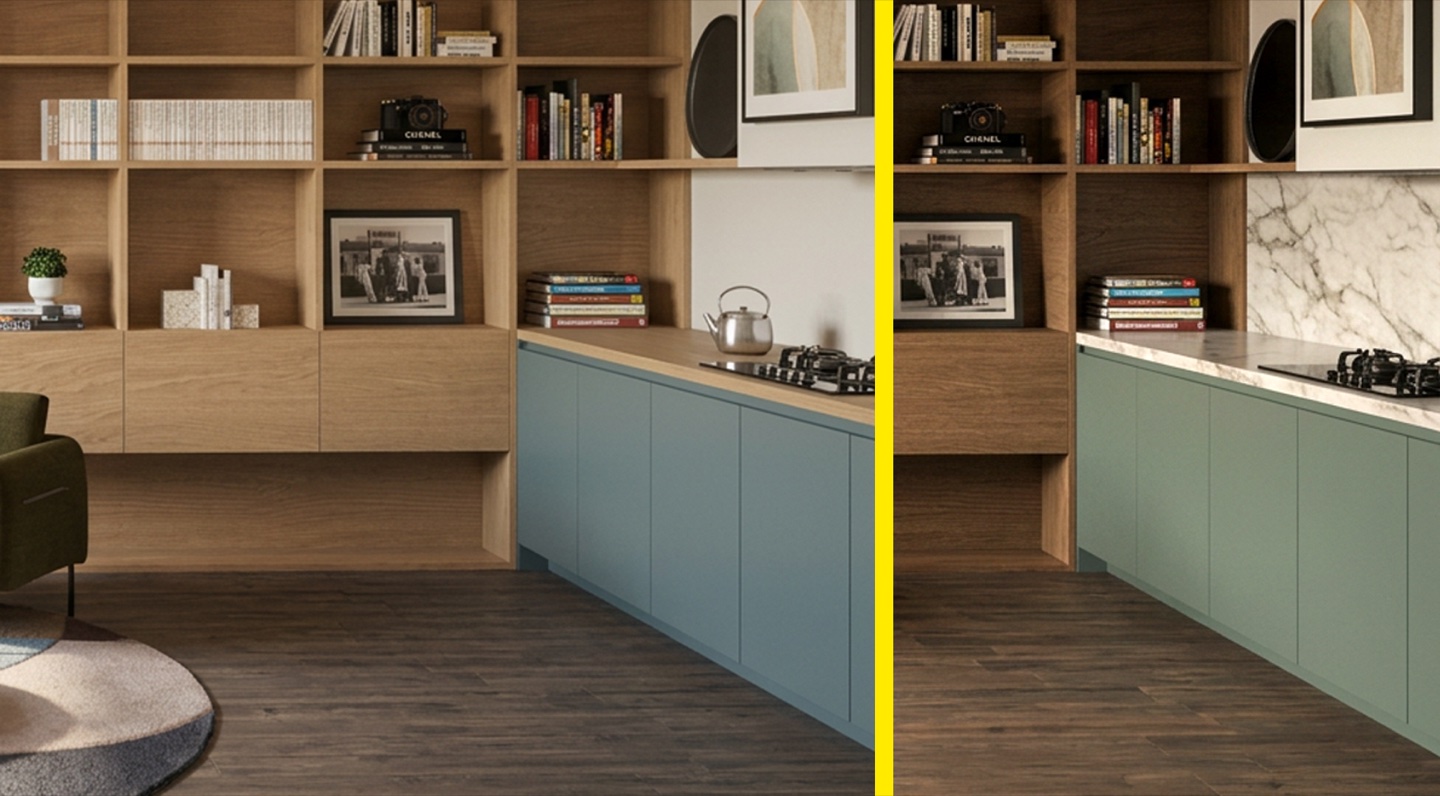
For exploring a direction, generating a few options and experimenting with the prompt usually gets you there. For approving a specific element, you may need a workflow with more direct control.
#3 What happens when a client wants a different direction
A common scenario: the client likes the layout but wants to see a lighter, quieter version. A lighter sofa, a cognac leather chair, a simpler rug, off-white cabinetry.
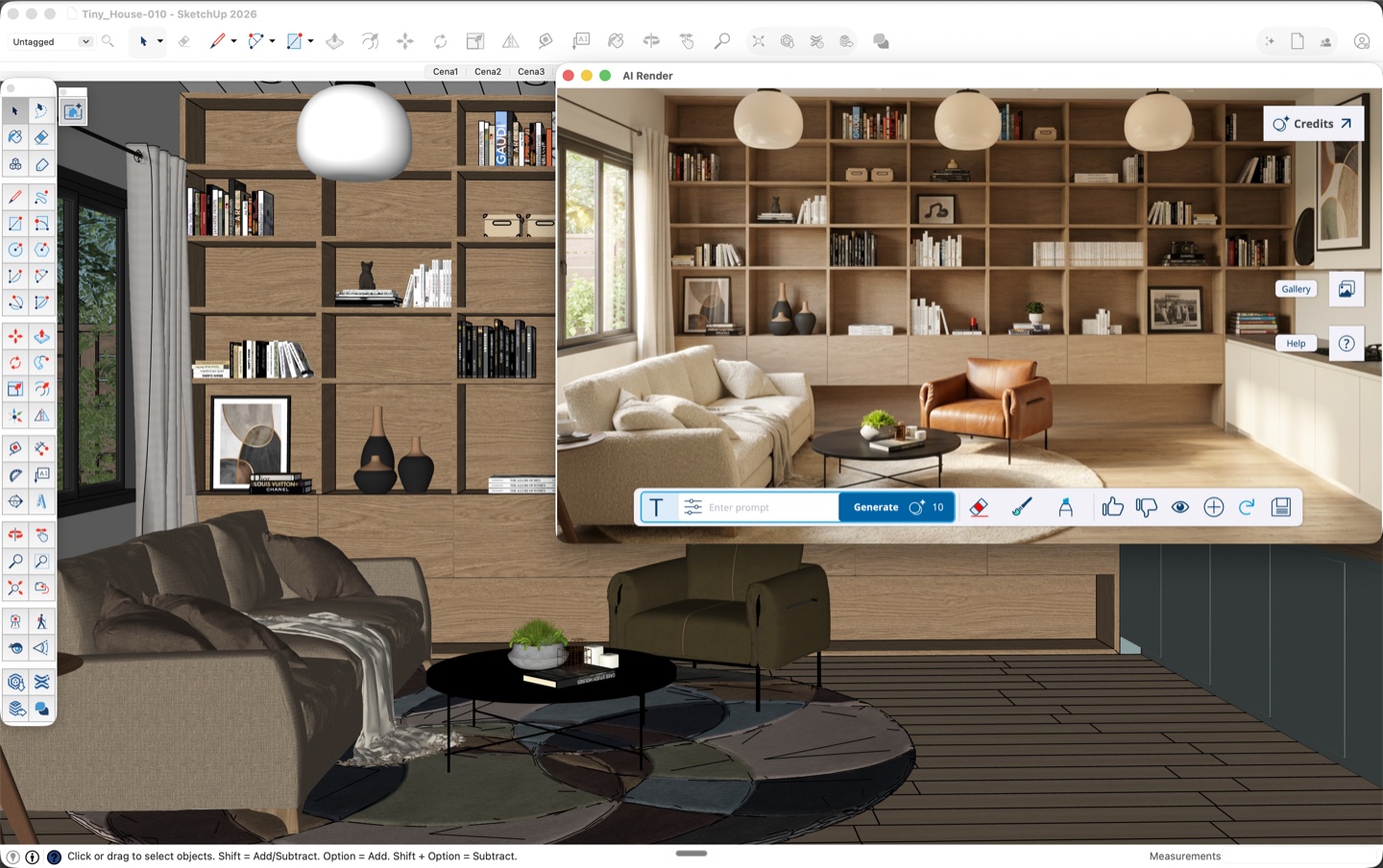
AI Render made all four changes at once. The result looked like a coherent material direction, and it happened quickly.
But look at what changed along the way. The round rug became rectangular, and some furniture details were reinterpreted as the materials changed.
This is where AI can be really helpful — as long as you are clear about what the image is doing.
- Use AI to help you and your client say yes to a direction.
- Then go back to SketchUp and put the materials, products, and other decisions that need to stay true back into the model.
- Make more images from the updated model.
That’s how you get the benefit of using AI for a quick visual without asking it to lock down client decisions to final renderings.
#4 What to do when a result needs fixing
In the strongest interior result, the lines in the SketchUp rug were interpreted as strange grooves in the rendered rug. A targeted Inpaint edit asked AI to rebuild that small area while keeping the rest of the room the same.
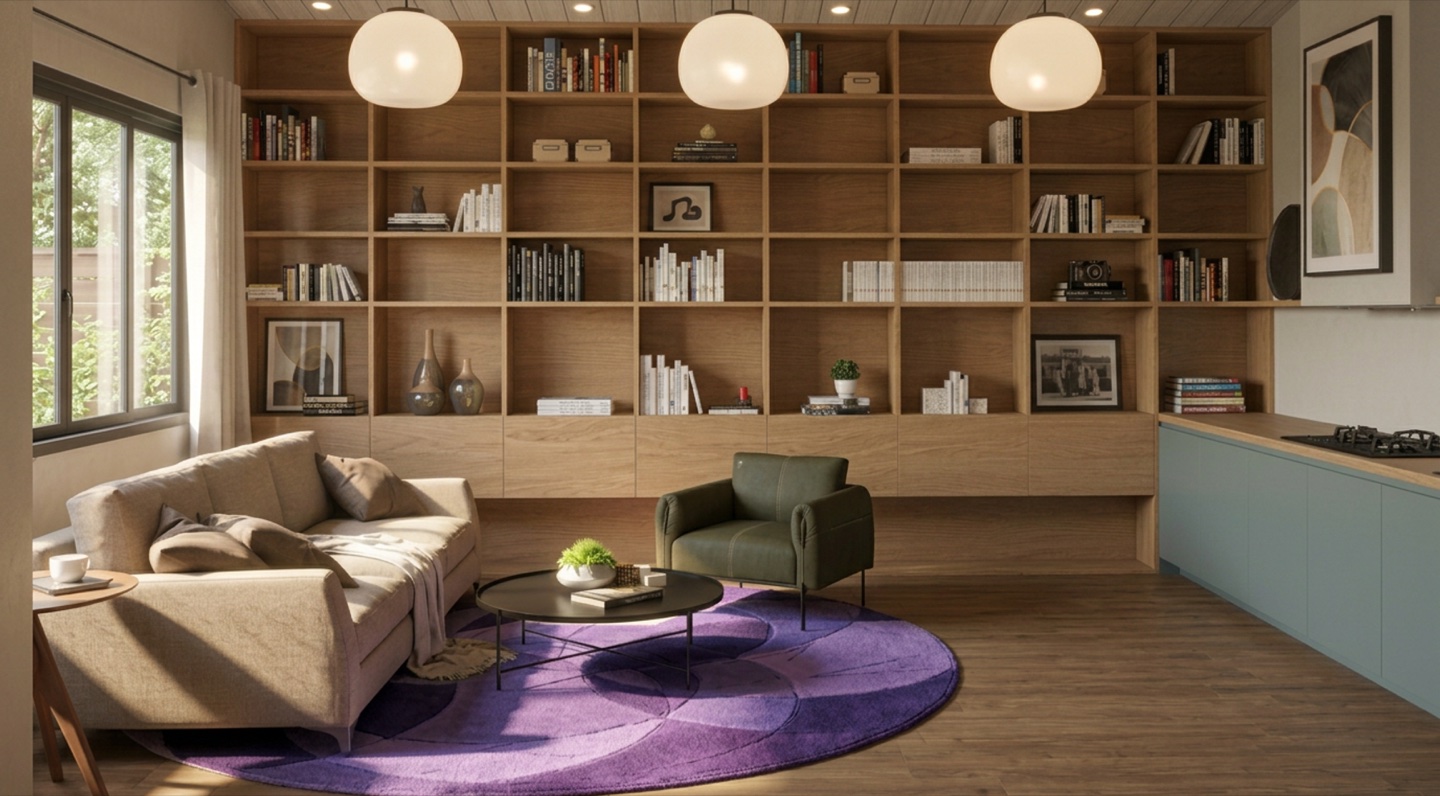
AI Render did leave the rest of the room alone. But the rug itself turned purple, and the original grooves were still there.
This is not a reason to give up on AI Render. It is a reminder that eventually you will get a promising image that needs one more thing — and isolated edits are not always guaranteed to work.
When that happens, think through your next move:
- Regenerate a few times and spend the credits hoping for a better result.
- Fix it in the SketchUp model first, then rerun the image.
- Try another AI workflow that is more tuned to the types of edits you need.
- Use a traditional rendering tool for the direct control you need.
Have a clear next move before you need it — not just more credits and another click.
#5 Getting a consistent set of views
Most projects need more than one view. Using the same prompt in a second view of the room, one result was close enough to use alongside the first image for an early concept presentation. The timber, cabinetry, furniture colors, and overall mood felt like the same project.
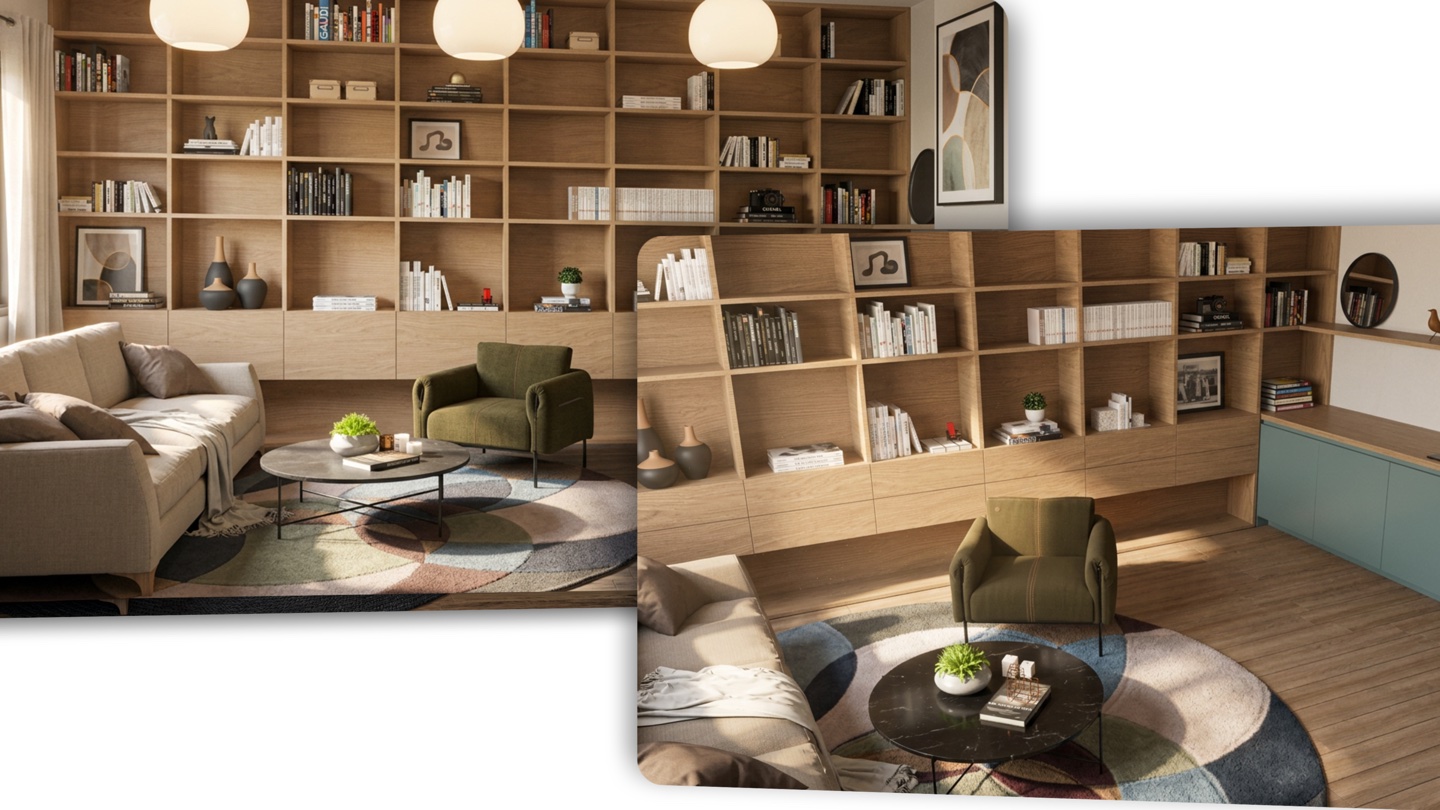
But that was one result from many attempts. In another, the timber countertop changed to stone again. In another, the direct sunlight changed the whole feeling of the room.
- If you only need a couple of selected concept images, you may be fine.
- If you need a whole set of views with the same mood and lighting, the same finishes, and you cannot afford for small details to drift, that is where a more controlled workflow starts to make a lot more sense.
#6 The exterior result
The strongest exterior image gave a convincing concept rendering in about 30 seconds. It kept the building form, the cladding, the opening, the deck, and the overall setting intact.
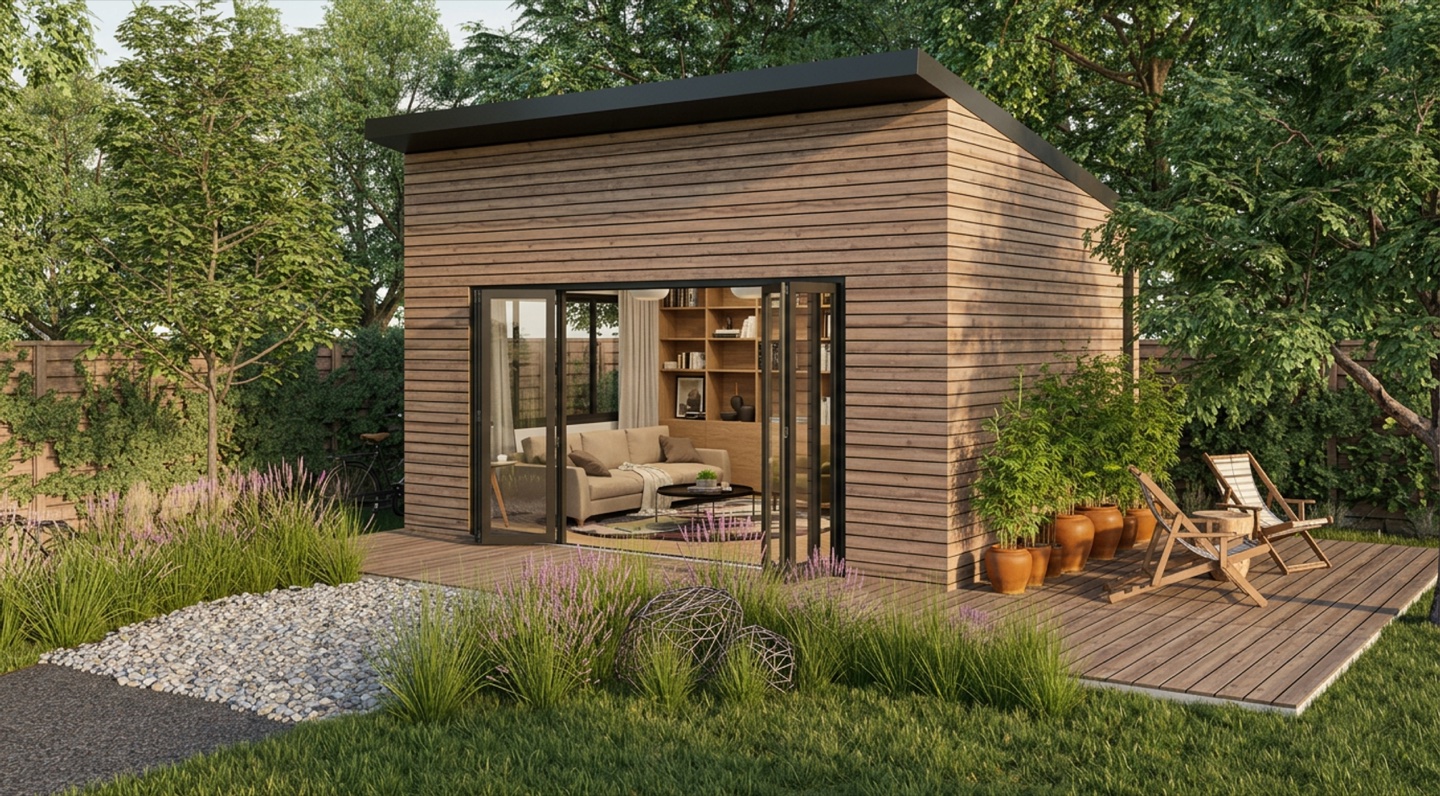
The lesson is the same outside: AI can do a lot with a SketchUp view. But you still need to look closely to find where it drifted, and decide whether the result is acceptable for the job you need the image to do.
BONUS One resolution limit to know
The image saved in this test came out at 1728 by 955 pixels.
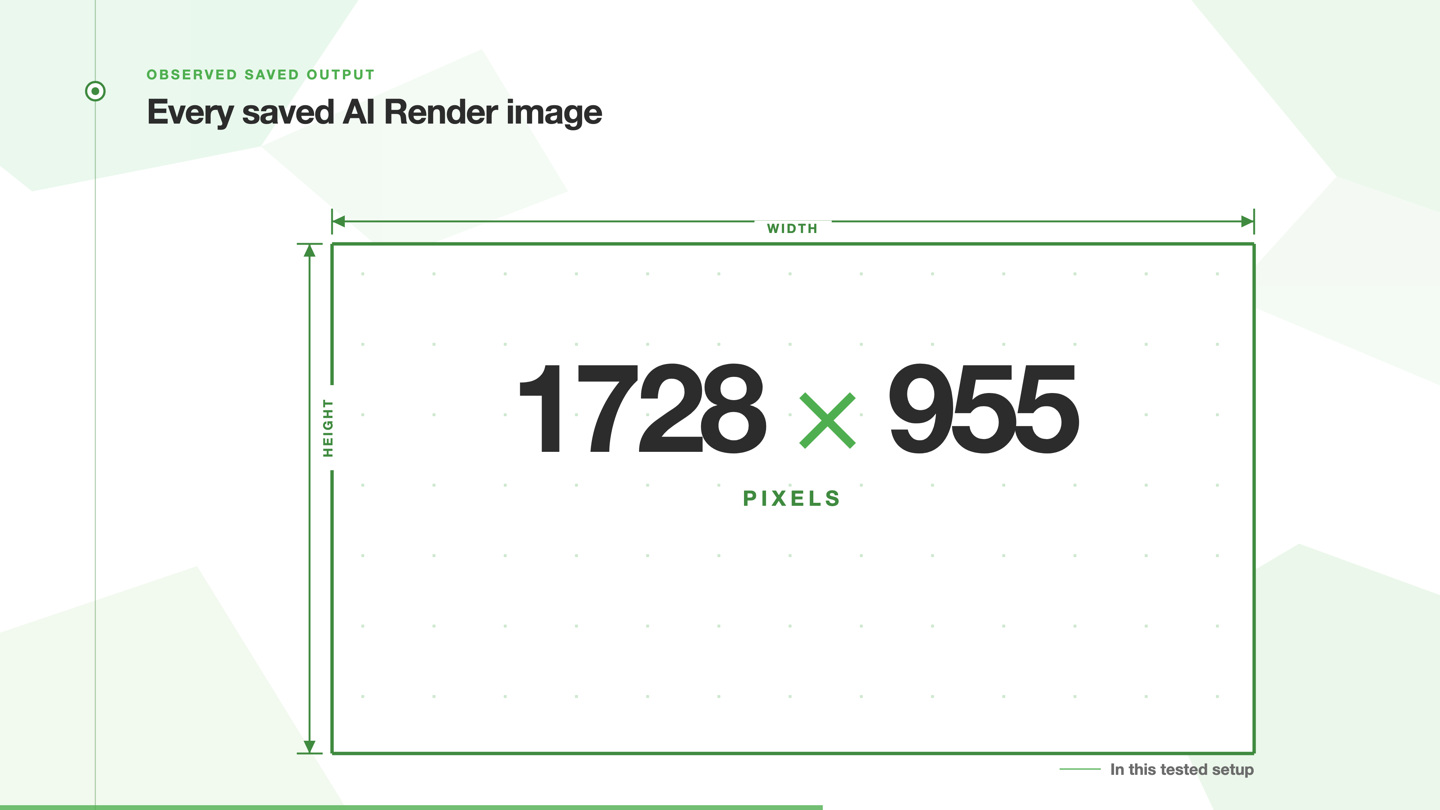
That could be fine for a screen-based presentation. But it will not work for high-resolution delivery.
RECAP The simple way to decide
- Start with your SketchUp model. Put the decisions that need to remain true into the model: the architecture, layout, important materials, furniture placement, and anything that needs to carry from one view to the next.
- Use AI Render to create quick, good-enough images to visualize design ideas with clients.
- Move to other, more controlled tools or workflows when you need direct control — specific material approval, repeatable revisions, a consistent set of views, final imagery, or higher-resolution delivery.
AI Render is great when you need to see a direction quickly. Once you need direct control, it is time to move to other more controlled tools or workflows.
YOUR NEXT STEPS
We hope our Is SketchUp AI Render Good Enough for Client Work? video and these notes have gotten you started down the right path.
From here, it’s definitely possible to learn everything on your own. But if you don’t have the time to figure out what you need to know, and you can’t afford to pick up bad habits, we recommend checking out our Video Course Library.
It’s filled with $8700 worth of SketchUp training exclusively for professionals — including our Intro to AI Rendering course, which walks through SketchUp AI Render, MyArchitectAI, Figma Weave, and a Veras + Enscape hybrid workflow, lesson by lesson.