YouTube video notes for:
Is SketchUp the Right Tool for Woodworkers?

These are the full notes for our video — every tip, screenshot and step, right on this page.
Download these notes as a PDF#1 Is SketchUp good for the types of projects I do?
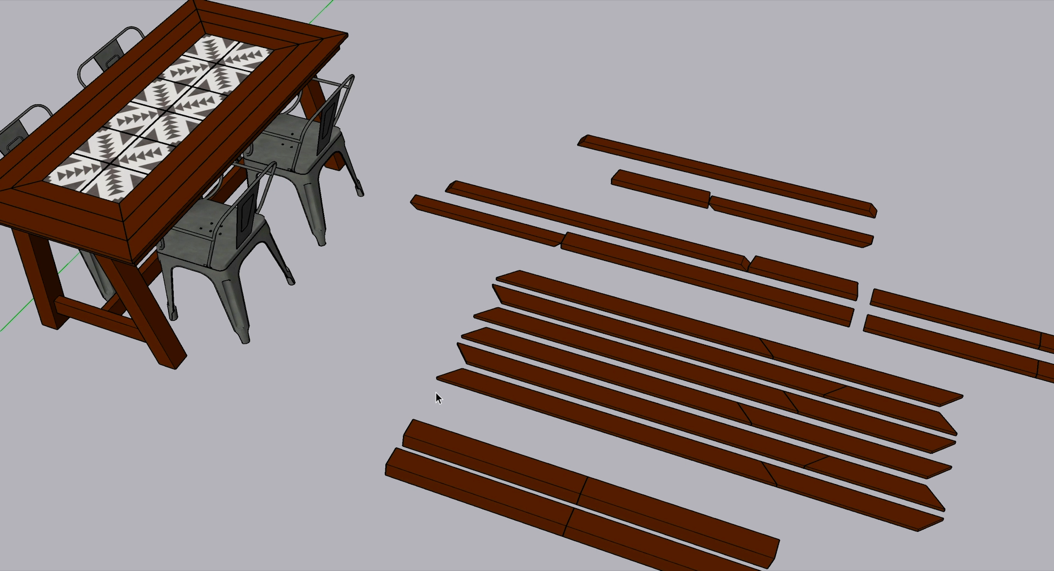
One thing you’ll notice as you’re learning SketchUp is that you can work with it similar to how you work with wood in your shop.
SketchUp is a fantastic planning tool for woodworkers. It can save you time, materials and money by letting you test your designs before you even make your first cut — on projects of all shapes and sizes. The first thing you’ll notice when you’re learning the fundamentals of SketchUp is that you can work with it similar to how you work with wood in your shop.
For example, using SketchUp’s basic drawing tools, you can create your pieces of wood; Then take measurements and make marks… And then cut, drill or carve each piece. From there, SketchUp is also great for figuring out how everything fits together. Using the same basic tools, you can preview and plan all of the joinery right down to the half blind dovetail joints!
#2 Is SketchUp necessary vs. how I already do things?
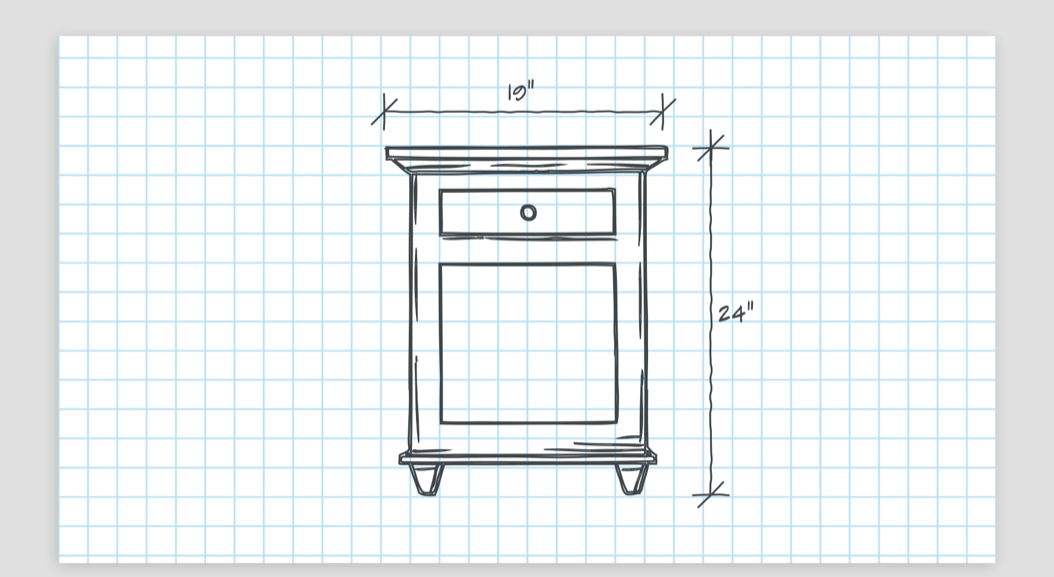
SketchUp was made for design changes: You can iterate through changes without having to start from scratch.
Chances are, you’ve been hand sketching your design ideas. And if your current way of doing things is working … why change it? But what if you need to change the design? Even for a simple project, you might need to start over with a new sketch. SketchUp was made for design changes. So you can more easily iterate through changes without having to start from scratch.
As you move on to more complicated projects, that’s where SketchUp really shines. First, you can draw things faster. And repeating elements can be quickly copied around your model. Second, you don’t have to draw different views. Since you’re creating a 3D model in SketchUp, it’s a snap to change your view to get different perspectives, details, and even plans, elevations and sections.
#3 Do I need a background in using CAD software?
SketchUp is designed to be easier and more intuitive to use than other CAD or 3D design software out there.
There are tens of millions of SketchUp users around the globe, a majority of them having little to no experience using other CAD or 3D software before learning SketchUp. However, while it’s true that SketchUp is relatively easy to use compared to other CAD and 3D software out there — it’s not as easy to learn as some would have you believe. In fact, one of the biggest reasons people get frustrated and give up on SketchUp is that they were led to believe that SketchUp was so easy to learn that it could be done in just a few minutes.
Like any valuable skill worth having, learning SketchUp doesn’t work that way. Our brains don’t learn that way! Instead, plan on taking the time to learn the fundamentals of SketchUp without the pressure of trying to use it right away on a real project. A good place to start is with our Getting Started with SketchUp video.
#4 How long does SketchUp take to learn?
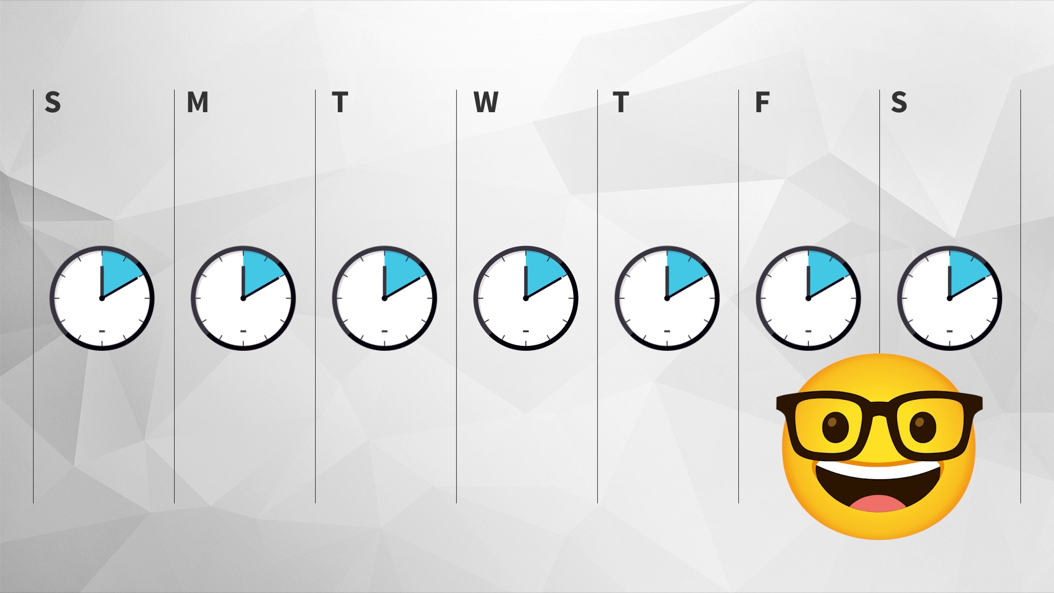
Following our advice, you might be ready to use SketchUp for your projects somewhere in the range of 3-6 weeks.
This varies greatly from person to person. But here’s some guidance for the fastest way to learn SketchUp: First, you should plan to learn and practice SketchUp daily, or as close to daily as possible. Spacing out shorter practice sessions - such as 10 minutes daily - will help your brain pick it up faster than one mass practice - like a single-day 70-minute cram session. Second, you should divide your daily session into two parts: First, learn a new tool, concept or technique. You can either watch or read about it, or follow along with a tutorial that walks you through it. Then challenge yourself to practice what you learned without referring to the material.
Make sure the challenge is simple enough that you don’t get stuck, but just hard enough that it really does challenge you. In this way, you could expect to feel confident in using SketchUp for your more straightforward woodworking projects somewhere in the range of 3-6 weeks.
#5 Can I get by using SketchUp Free?
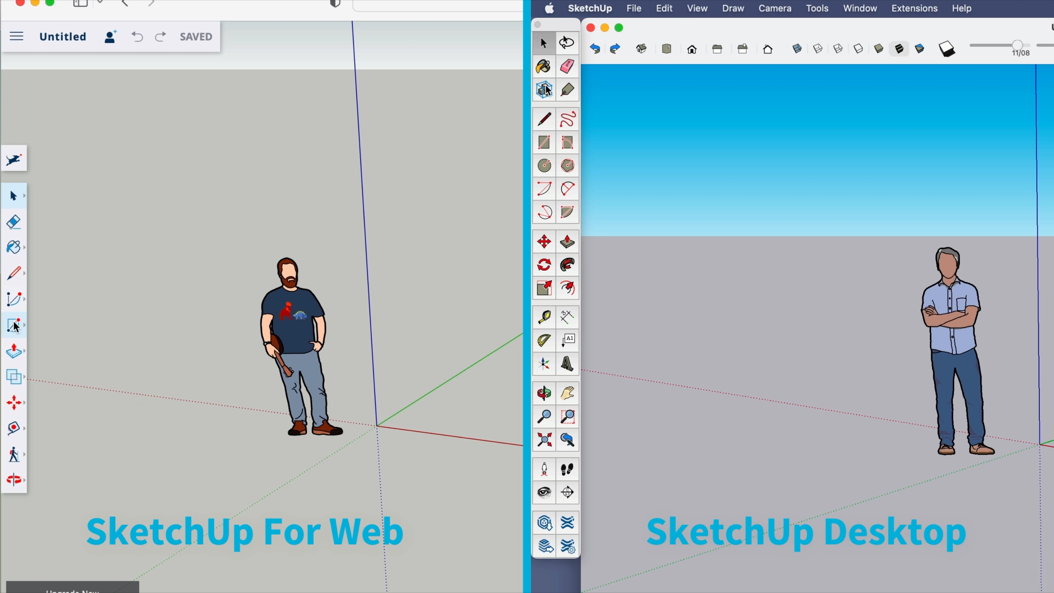
While you can plan projects using SketchUp Free, many woodworkers find it worthwhile to upgrade to Pro.
Trying to compare all the different versions of SketchUp is confusing. For more clarity on what all the different versions of SketchUp offer, watch our SketchUp Free vs. Pro video. But what you’re probably really wondering is: Can I just get away with using SketchUp Free? For many, the answer is Yes. But to make sure that’s the right answer for you, let’s talk about the 5 most common reasons woodworkers upgrade to either Go or Pro:
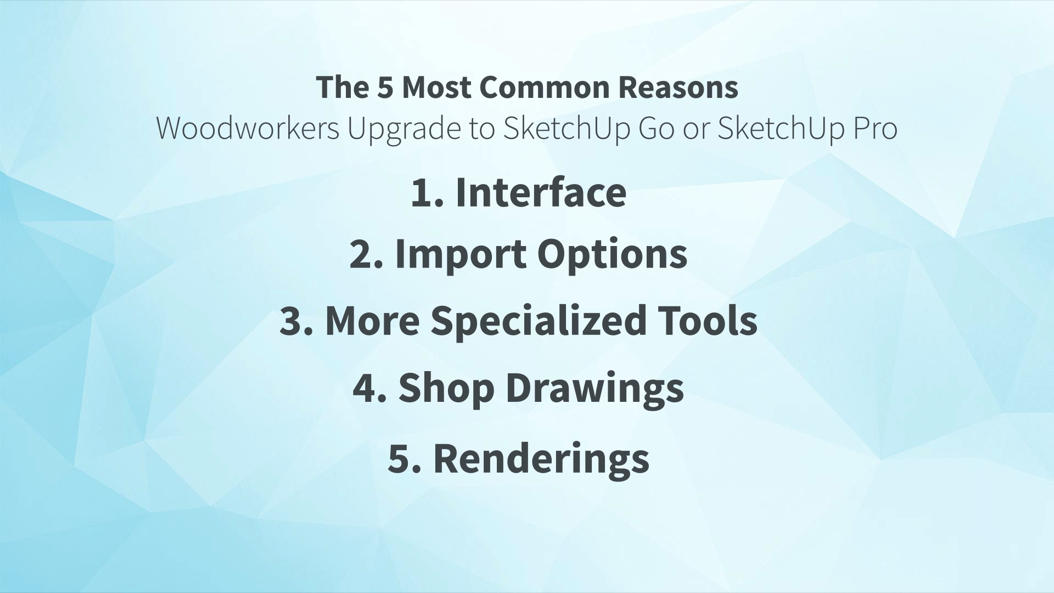
Of the upgrades you get with SketchUp Pro, the specialized tools and ability to create shop drawings are woodworker favorites.
First, there’s the Interface. SketchUp Free and SketchUp Go are web-apps and the projects you work on are also saved on the Cloud through your Trimble account. SketchUp Pro is a more traditional desktop application, so you don’t need to be connected to the internet in order to use it, and files are stored locally on your machine. To work on your projects offline, when you won’t have internet — you’ll need SketchUp Pro.
Next let’s talk about Import Options. With any version of SketchUp you can import image files to reference and build your 3D model on top of. If you upgrade to Go or Pro you’ll be able to import CAD files directly into SketchUp. If you need the ability to import PDF files, you’ll need the desktop version of SketchUp Pro.
The third difference to know is that when you upgrade you’ll get Specialized Tools. With both Go and Pro, you get an additional set of SketchUp tools called the Solid Tools, which can help you more quickly cut, drill, carve and add joinery than you can with the default tools in SketchUp Free. What’s more, with Pro, you can add even more specialized tools called extensions that help you solve all sorts of common problems you’ll encounter while designing your projects.
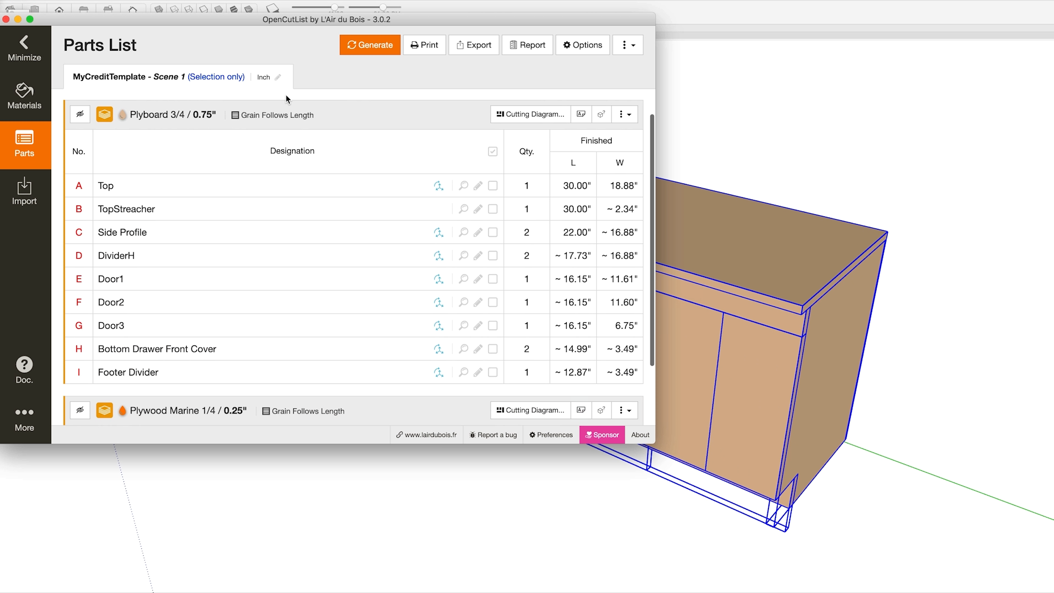
Extensions are designed to make hard SketchUp tasks easier, faster, and more accurate. Some key things that extensions can really help woodworkers with include: Rounding corners; Bezier shapes; Beveled edges; Dovetail and other complicated joints; And Cutlists; Just to name a few!
Here are some links to popular extensions for woodworkers:
- TIG-Weld
- Bezier Spline
- Fredo Corner (requires LibFredo6)
- Wudworx
- CutList
- PurgeAll
- Curviloft (requires LibFredo6)
- Fredo Scale (requires LibFredo6)
- Joint Push/Pull (requires LibFredo6)
- CurveMaker
- Solid Inspector 2
- CleanUp 3
The next thing you’ll want to consider is Shop Drawings. While you can add some dimensions and labels in SketchUp Free or Go, you’re fairly limited in your ability to output traditional working shop drawings. If you upgrade to SketchUp Pro, it will come bundled with a program called LayOut, which you can use to turn your SketchUp model into a detailed set of shop drawings. We cover this process in our Getting Started with LayOut video — and even though that video is geared towards architects and interior designers, the workflow for shop drawings is essentially the same.
The last thing you’ll want to consider to weigh whether upgrading is worth it for you, is Renderings. If you’re going to be presenting your design, you’ve got some basic styling options that are available to you in SketchUp Free. To go beyond these default settings and come up with your own styles, you’ll need to upgrade. And if you are using SketchUp Pro, you’ll even be able to add Rendering Extensions, which you can use to go beyond SketchUp’s built-in style features, even to the point of photorealistic materials and lighting.
Now, if one or more of these features looks interesting, but you’re thinking you’ll start by learning SketchUp Free before upgrading — just know that the user interface is different in Pro, so be prepared for a slight learning curve when you transition to later.
But the good news is: all the tools and settings work the same whether you’re using Free, Shop, and Pro.
You can also try SketchUp Pro free for 30 days — to see if it’s right for you.
YOUR NEXT STEPS
We hope our Is SketchUp the Right Tool for Woodworkers? video and these notes have gotten you started down the right path.
From here, it’s definitely possible to learn everything on your own. But if you don’t have the time to figure out what you need to know, and you can’t afford to pick up bad habits, we recommend checking out our Video Course Library.
It’s filled with $8700 worth of SketchUp training exclusively for professionals — including our Complete Intro to SketchUp course.